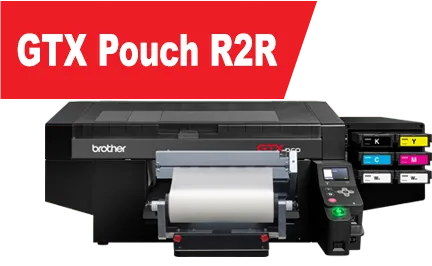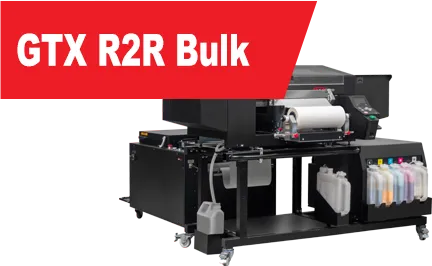
GTX R2R Support
IMPORTANT UPDATE: Brother is transitioning to White Ink Ver. 1 (W1) to maintain compliance with updated ECO PASSPORT by OEKO-TEX certification standards. To ensure compatibility, a firmware, driver, and GTX Graphics Lab software update is required prior to using W1 ink. Please visit our dedicated W1 landing page to download the latest software, view step-by-step instructions, and watch support videos to guide you through the process.
Visit the W1 Landing PageUser Tutorials
Brother Academy is your online resource for learning all about your Brother DTG printer. It contains interactive courses for new users and a curriculum all team members can use to become efficient at every aspect of GTXpro operation. Existing customers can gain access by making a request to [email protected]. Watch the short video to discover all you can do through Brother Academy.
Brother AcademyDownloads
Before downloading any software, please make sure that you are downloading software designed for your printer model.
Click here to watch this video to determine which Brother DTG printer model you have.
Attention: Please submit a support ticket to access the latest GTX R2R driver, firmware and GTX Graphics Lab.
GTX R2R
-
GT Printer Driver Uninstall Tool
This download includes the GT Garment Printer Uninstall Tool.zip. After unzipping the file open the GT Garment Printer Uninstall Tool folder and double click on the BrRemPnP.exe (the only icon in color) executable file to run the tool. This tool is for Windows® operating system computers only.
-
GTX R2R Battery Reset
-
GTX Bulk R2R Stand Assembly Instructions
-
GTX Pouch R2R Stand Assembly Instructions
-
GTX R2R Parts Book
-
GTX R2R Warranty
Videos
Submit a Support Ticket
When submitting a support ticket please place the best contact number in the details.
If experiencing an issue with a Print head please upload a log, nozzle check, an image of the Suction Cap and bottom of Print Head.